
Mouse Scroll Wheel Test: Check Scroll Speed, Precision & Wheel Health (Free Tool)
Hover over the test area above and scroll up/down to measure your scroll wheel speed, detect reverse scrolling issues, and check for hardware problems. No downloads, instant results.
Test Your Mouse Scroll Wheel in Seconds
Welcome to our free mouse scroll wheel test! This tool measures how fast and accurately your mouse wheel responds, tracking scroll speed in pixels per second, detecting directional inconsistencies, and identifying hardware issues like encoder wear or debris buildup.
Whether your scroll wheel feels jumpy, you’re testing a new gaming mouse, or you want to optimize weapon switching speed in FPS games, this diagnostic gives you precise answers immediately.
How to use it:
- Position your cursor in the test area above
- Scroll up and down repeatedly for 5-10 seconds
- Check your results: Scroll speed (px/s), max velocity, consistency score, and directional accuracy
What to look for:
- Smooth color flow = Healthy scroll wheel
- Color breaks or direction changes = Hardware issues detected
- Speed drops = Potential encoder wear or dirt buildup
For best accuracy:
- Use a clean, flat mouse surface
- Scroll with consistent pressure (not too light, not too heavy)
- Close CPU-intensive background applications
- Test both slow and fast scrolling speeds
Understanding Your Scroll Wheel Test Results
After testing scroll wheel test, you’ll see several diagnostic metrics. Here’s what each reveals about your mouse wheel health:
Scroll Speed (px/s)
This measures how many pixels your screen scrolls per second. Higher values indicate faster wheel movement.
- 500 -1,500 px/s = Normal browsing speed
- 1,500 -3,500 px/s = Fast scrolling (productivity work)
- 3,500 -7,000+ px/s = Hyper-scrolling (gaming mice with free-spin wheels)
Note: Speed varies by mouse type. Gaming mice with hyper-scroll features (like Logitech G502) can hit 7,000+ px/s, while standard office mice typically max at 2,000 px/s.
Consistency Score (%)
This critical metric measures how evenly your scroll wheel reports movement. Low consistency indicates hardware problems.
- 90-100% = Excellent (smooth, predictable scrolling)
- 70-89% = Good (minor variations, acceptable for most uses)
- 50-69% = Fair (noticeable stuttering, consider cleaning)
- Below 50% = Poor (hardware issues detected, repair recommended)
Reverse Scroll Detection:
This counts how many times your wheel registered opposite-direction inputs while scrolling consistently. Any reverse events indicate encoder degradation, a common failure in heavily used mice.
- 0 reverses = Healthy encoder
- 1-3 reverses = Early wear (monitor closely)
- 4+ reverses = Failing encoder (replacement needed)
Max Velocity (px/s)
Your peak scrolling speed achieved during the test. Useful for comparing different mice or tracking degradation over time.
What Is a Scroll Wheel Test?
A mouse scroll wheel test is a diagnostic tool that analyzes your wheel’s mechanical and electronic performance. Unlike simple speed tests, comprehensive wheel diagnostics check for:
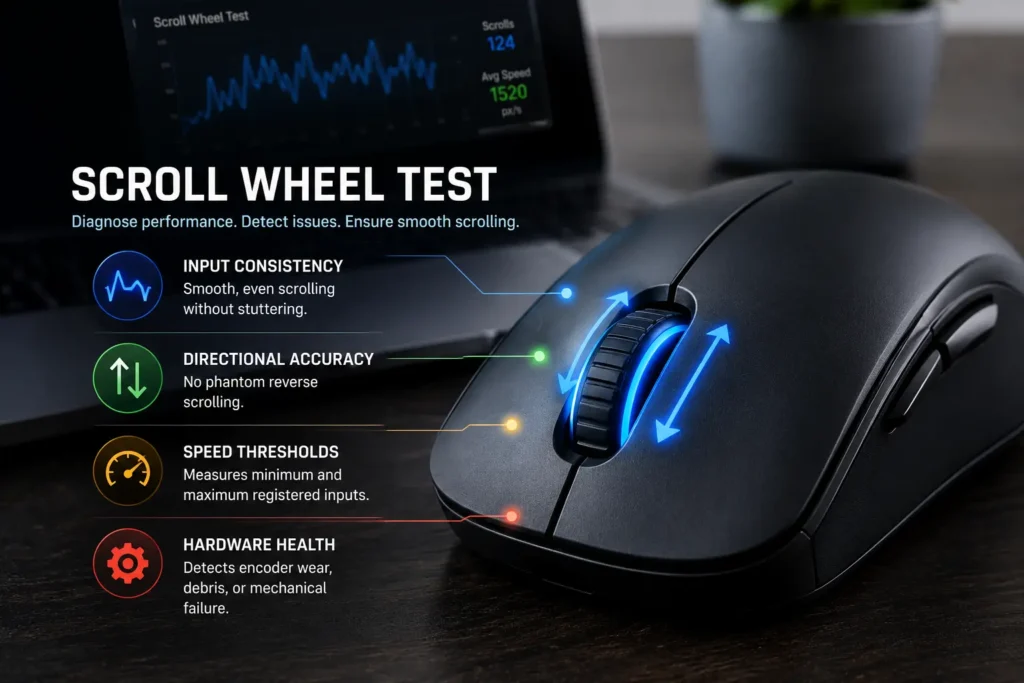
- Input consistency (smooth vs. stuttering movement)
- Directional accuracy (phantom reverse scrolling)
- Speed thresholds (minimum and maximum registered inputs)
- Hardware health (encoder wear, debris, mechanical failure)
Common scroll wheel types:
- Mechanical encoders – Most common; prone to wear after 100,000+ scrolls
- Optical encoders – Premium gaming mice; more durable, precise
- Magnetic encoders – High-end options; virtually infinite lifespan
- Touch/tactile strips – Laptop trackpads; no moving parts
Scroll Speed vs. Precision: What’s the Difference?
Users often confuse fast scrolling with accurate scrolling. Here’s the difference:
| Feature | Scroll Speed | Scroll Precision |
| Measures | How fast does content move | How accurately the wheel responds to inputs |
| Important for | Weapon switching, inventory management | Zoom control, timeline scrubbing, document editing |
| Affected by | Wheel tension, encoder resolution, software settings | Encoder quality, debounce algorithms, and mechanical wear |
| Ideal range | 3,000-7,000 px/s for gaming | High consistency score (90%+) regardless of speed |
Example: A mouse that scrolls 7,000 px/s but has 40% consistency will feel erratic and uncontrollable. A 2,000 px/s mouse with 95% consistency provides a better user experience despite being “slower.”
Why Test Your Mouse Scroll Wheel?
You might wonder why I need to perform scroll wheel test, “My wheel scrolls fine” Here are critical reasons regular testing matters:
1. Detect encoder wear before failure
Mechanical encoders degrade gradually. Early testing catches intermittent reverse-scrolling before it becomes constant, saving you from sudden productivity loss during critical work.
2. Verify gaming mouse performance
Many gaming mice advertise “hyper-scroll” or “free-spin” modes. Testing confirms these features actually deliver advertised speeds (4,000+ px/s) and don’t sacrifice precision.
3. Identify debris and contamination
Dust, hair, and food particles cause inconsistent scrolling. A consistency score below 70% often indicates that cleaning can restore performance without replacement.
4. Compare mice before purchase
Test your current mouse, then test display models at retailers. Objective metrics prevent expensive mistakes when upgrading.
5. Optimize software settings
Windows and macOS scroll speed settings interact with hardware differently. Testing helps find the perfect balance of speed and control for your specific mouse.
Is My Scroll Wheel Working Properly? (Common Problems)
Scroll Wheel Jumping or Skipping
If you scroll down and the page randomly jerks back up, you’re dealing with jumping. This is almost always caused by a piece of dust or hair getting stuck inside the optical encoder (the little sensor that detects movement). A quick blast of compressed air usually clears it right up.
Scroll Wheel Double Scrolling
This happens when you click the wheel once (middle-click), but your computer registers it twice. It’s usually a hardware issue where the physical switch underneath the wheel is wearing out or getting loose. Sometimes, tweaking your double-click speed in your computer’s settings can mask the issue, but if it keeps happening, the hardware might be on its last legs.
Scroll Wheel Stuttering or Stuttering Under Pressure
If the wheel feels like it’s lagging behind your actual finger movements, or it starts failing when you’re scrolling fast during a game, it’s usually a performance bottleneck. This can happen if your computer’s CPU is maxed out, or if your mouse software (like Logitech G Hub or Razer Synapse) is glitching out in the background.
Scroll Wheel Not Working in Some Apps
If your mouse works perfectly in your browser but completely dies in a specific game or Excel, it’s a software configuration issue. Check the specific app’s settings to see if “smooth scrolling” is messing things up, or run the app as an administrator to give it the proper permissions to read your mouse inputs.
How to Fix Scroll Wheel Problems
After performing scroll wheel test and found issues. Before you buy a new mouse, try these in order. Most scroll issues are fixable in under ten minutes and cost nothing.
How to Clean Your Scroll Wheel (Step-by-Step)
Your wheel scrolls up while you’re scrolling down, causing jerky, unpredictable movement.
What you need: Compressed air, isopropyl alcohol (90%+), cotton swabs, and a toothpick.
Power down
Unplug your mouse or switch it off if it’s wireless to prevent any accidental shorts.
Blow out the dust
Unplug your mouse or switch it off if it’s wireless to prevent any accidental shorts.
Wipe down the wheel
Lightly dampen a cotton swab with alcohol (not dripping). Press it into the side gaps of the wheel and rotate it to melt away finger oils.
Scrape the edges
Use a toothpick to gently pick out any stubborn, visible debris or hair stuck along the wheel edges.
Dry and test
Let the mouse dry for 5 minutes. Plug it back in, run your scroll test again, and check if your consistency score improves.
Most people see immediate results after a quick clean. If your wheel is still jumping around, the issue might be software-related or physical wear and tear.
Adjusting Software Debounce Settings
If cleaning didn’t help, the problem might be digital, not physical. Some mice allow you to adjust “debounce time” via their official software.
- Logitech mice: Open G HUB, click on your mouse, go to settings, and look for scroll or debounce adjustments.
- Razer mice: Open Synapse, select your device, and check the scroll settings tab.
- Windows settings (for any mouse): Go to Settings > Bluetooth & Devices > Mouse. While changing the scroll speed here won’t fix a broken sensor, lowering the lines-per-scroll can make skipping much less annoying.
It’s definitely worth a shot before you think about opening up the hardware or buying a replacement.
When to Repair vs Replace Your Mouse
Here is the honest truth most sites skip over when your hardware starts acting up:
- Repair it if: Your scroll test consistency score is sitting between 50% and 70% (a clean usually fixes this). It’s also worth saving if the mouse is less than a year old, can be fixed via software tweaks, or is a high-end model (like a Logitech MX Master or Razer DeathAdder) where a replacement internal encoder costs only a few dollars.
- Replace it if: Your score is under 40% even after a thorough clean, or the page constantly jumps in the wrong direction. You should also replace it if it’s a budget mouse under $20, or if the wheel itself is physically cracked, broken, or loose on its axle.
If you’re still unsure, perform a quick scroll wheel test after cleaning. A score above 75% means your mouse has plenty of life left. If it scores lower, it’s probably time for an upgrade.
Scroll Wheel Test for Gaming Mice
A gaming mouse scroll wheel does a lot more than browse web pages. It switches weapons, cycles inventory, controls zoom and when it starts misfiring, it costs you rounds. This section is specifically for checking if your gaming mouse is actually keeping up with your hands.
Weapon Switching & Inventory Scroll Speed
In fast-paced games, scroll wheel speed matters more than most players realize. Weapon switching in CS2, cycling abilities in MOBAs, or flicking through inventory in survival games all depend on your wheel registering inputs quickly and accurately.
A solid gaming mouse should hit at least 1,500 px/s in standard ratchet mode. If your peak speed falls below 1,000 px/s, or your consistency score drops under 75%, your mouse is actively dropping inputs mid-game, meaning you’ll scroll to switch weapons and either nothing will happen, or you’ll overshoot by two slots.
If you’re on the fence, test it one last time after cleaning. A score above 75% means your mouse has plenty of life left. Anything below that, and it’s likely time for an upgrade.
Hyper-Scroll Mode — How to Test It
In hyper-scroll mode, your mouse should reach 4,000–8,000+ px/s depending on the model. If you’re getting under 3,000 px/s in free-spin, either the mode isn’t fully engaged or the wheel mechanism is dragging.
- Activate hyper-scroll mode (usually a button behind the wheel)
- Give the wheel a firm flick and let it spin freely
- Watch the peak speed reading on our tool
- Compare it against a fresh spin, consistency matters here too.
A healthy hyper-scroll wheel should coast smoothly and register inputs all the way through the spin, not cut out halfway.
How Mouse Polling Rate Affects Scroll Performance
Your mouse polling rate determines how often it reports its position and inputs to your PC – measured in Hz. A 125Hz mouse reports 125 times per second. A 1000Hz mouse reports 1,000 times per second.
For scroll wheels, a higher polling rate means faster, more accurate input registration. At 125Hz your scroll inputs are checked every 8ms. At 1000Hz that drops to 1ms. This means fast scrolls on a low polling rate mouse can have inputs dropped entirely, the wheel moved between reports and the PC never caught it.
If you’re gaming on a mouse set to 125Hz or 250Hz and experiencing missed scroll inputs, bumping the polling rate up in your mouse software is worth trying before assuming hardware failure. Before assuming your hardware is broken, bump your mouse software up to 1000Hz. You can easily verify your stability right now using our quick Mouse Polling Rate Test.
FAQ
Q: Why is my mouse wheel not working properly?
There are usually three reasons for this: dust and lint trapped inside, outdated software drivers, or physical wear and tear. If it’s jumping around, a dirty sensor is the most likely cause.
Q: How to fix mouse wheel?
Start with the easiest fixes: unplug it and plug it back in, or restart your computer. If that doesn’t work, try cleaning it, updating your mouse drivers in your computer’s settings, or testing it on another device to see if the mouse itself is broken.
Q: What scroll speed is considered “fast”?
For productivity, 2,000-3,000 px/s is excellent. For competitive gaming (weapon switching), aim for 4,000+ px/s with hyper-scroll enabled. The current world record is approximately 7,500 px/s using specialized free-spin wheels.
Q: Why does my scroll wheel work in some apps but not others?
This indicates software conflicts, not hardware failure. Check for mouse gesture extensions (Chrome), scroll-enhancement utilities (WizMouse), or game overlays that intercept wheel inputs. Test in Notepad for baseline hardware functionality.
Q: Can I test horizontal scroll wheels?
This test focuses on vertical scrolling. For horizontal wheels (Logitech MX Master thumb wheel), rotate your mouse 90 degrees and scroll; the tool detects direction and will register horizontal inputs as vertical for testing purposes.
Q: Is high scroll speed always better?
Not for precision work. Graphic designers and video editors often prefer lower speeds (1,000-1,500 px/s) with high consistency for frame-accurate timeline scrubbing. Speed without control causes overshooting.
Q: How long do mechanical encoders last?
Rated for 100,000-500,000 scroll cycles depending on quality. Heavy users (8+ hours daily) may see degradation in 1-2 years; casual users get 5+ years. Optical encoders last 10x longer but cost more.
Q: Can I fix a completely dead scroll wheel?
If cleaning doesn’t work and the encoder shows physical damage, replacement is straightforward with basic soldering skills. Encoders cost under $5. For wireless mice, also check battery levels, low power causes input dropouts.