
Free Backlight Bleed Test – Check Your Screen for Bleeding & Light Leakage
Welcome to our free Screen bleeding (or backlight bleeding) tester! This tool reveals light leakage around your display’s edges and corners, a common LCD/LED monitor defect that ruins dark scenes in movies and games. No downloads, no signups, just instant detection.
Whether you just bought a new gaming monitor, suspect your laptop screen has defects, or want to verify your display quality before the return window closes, this test gives you clear visual evidence in under 30 seconds.
How to use it:
- Click the “Start Test” button above
- Your screen will go completely black in full-screen mode
- Look carefully at all four corners and edges for bright spots or glowing patches
- Take a photo if you spot any issues (useful for warranty claims)
For best results:
- Test in a completely dark room or turn off all lights
- Clean your screen first (dust can look like bright spots)
- Set your brightness to 50% (not maximum)
- View from 2-3 feet away, straight on
- Disable night mode or blue light filters
- Give your eyes 10 seconds to adjust to the darkness
What you’re looking for: Bright white or yellowish glows near corners or edges, cloudy patches along borders, or uneven lighting that shouldn’t be there on a pure black screen.
What is Screen Bleeding?
Screen bleeding (also called backlight bleeding or Backlight bleed) is a display defect where unwanted light escapes around the edges or corners of LCD and LED monitors. This happens because these screens use a backlight panel behind the display, and when the internal layers aren’t perfectly aligned, light “bleeds” through gaps, creating visible bright spots on dark content.
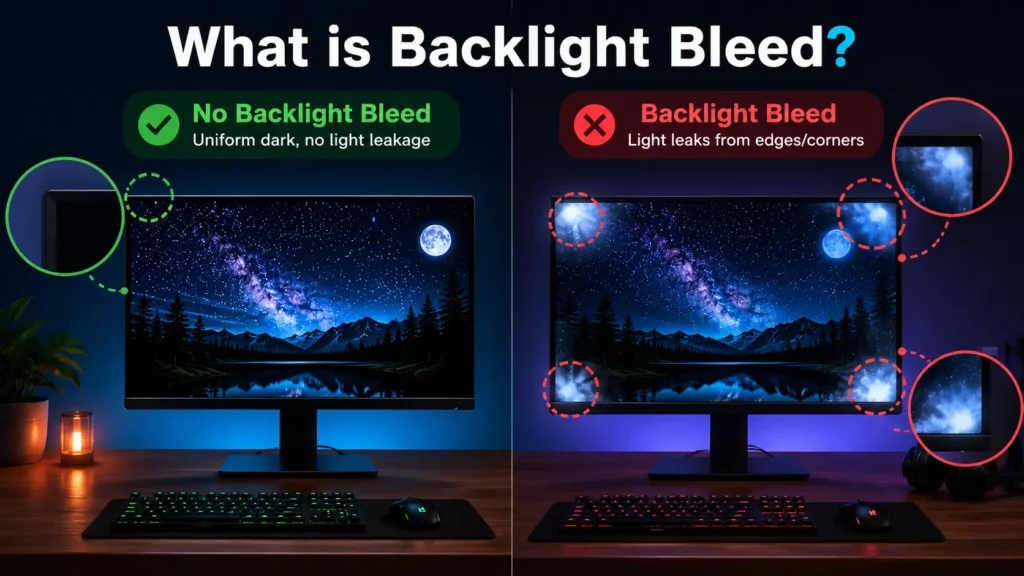
Why it matters: During movie night or late-night gaming sessions, backlight bleeding ruins immersion by turning deep blacks into washed-out grays with distracting bright corners. It’s especially annoying in:
- Dark movie scenes (horror films, space sequences)
- Gaming in dimly lit rooms (atmospheric games lose impact)
- Photo/video editing (can’t trust black levels)
- Reading at night (harsh bright edges cause eye strain)
What Does Screen Bleeding Look Like?
Screen bleeding appears as:
- Bright, glowing corners that look like flashlights behind the screen
- Cloudy white patches along the edges or borders
- Uneven light leakage creates visible halos around the perimeter
- A yellowish or whitish glow is most obvious on pure black backgrounds
- Permanent bright spots that don’t change when you move your head
If the glow stays in the same place no matter how you tilt your head, it’s backlight bleed. If it shifts around, you might be seeing IPS glow instead (we’ll cover the difference below).
How to Test Backlight Bleed on Android & Mobile?
Testing backlight bleed on a phone is slightly different from a monitor, the screen is smaller and you’re usually holding it, so lighting and angle matter more than you’d think.
Here’s how to do it properly:
- Go to our backlight bleed test and open the black screen on your phone’s browser
- Turn your room lights off, or go somewhere dark
- Crank screen brightness to maximum
- Hold the phone at arm’s length and look straight at it, don’t tilt it
- Check the edges and corners for any patches of light, gray blotches, or colored halos.
A few things worth knowing for phones specifically. AMOLED and OLED screens – common on Samsung Galaxy, Google Pixel, and most premium Android phones -don’t have a traditional backlight, so they physically cannot get backlight bleed. If you see uneven brightness on an AMOLED phone, it’s more likely screen burn-in or a dead zone, not bleed.
LCD screens are where bleed actually happens. Budget and mid-range Android phones tend to use LCD panels, and they can show bleed just like any LCD monitor would. iPhones before the iPhone X used LCD (the XR and SE models still do), so those are worth checking too.
What Causes screen bleeding?
Understanding why this happens helps you avoid problematic monitors and know when to demand a replacement:
1. Poor Panel Construction
LCD screens are made of multiple layers stacked together:
- LED backlight array (the light source)
- Light diffuser sheets
- Polarizing films
- Liquid crystal layer
- Color filters
- Front glass
When these layers aren’t perfectly aligned during manufacturing, microscopic gaps allow backlight to escape. Budget monitors often cut corners here.
2. Excessive Physical Pressure
Pressure squeezes the layers apart, creating light leakage points:
- Overtightened bezel screws are pushing too hard on the panel edges
- Rough shipping is causing temporary or permanent layer separation
- Mounting stress from wall mounts or tight monitor arms
- Thin bezel designs that sacrifice structural support for aesthetics
3. Manufacturing Quality Control
Some display bleed is “within tolerance,” but excessive bleeding means:
- Failed quality inspection
- Cost-cutting production shortcuts
- Defective adhesives between layers
- Poor materials that don’t seal properly
4. Panel Technology Limitations
Different screen types have varying susceptibility:
- IPS panels → Most prone to screen bleeding (but best colors)
- VA panels → Less bleeding, better blacks
- TN panels → Minimal bleeding (but worst viewing angles)
- OLED displays → Zero Screen bleed (no backlight at all!)
Backlight Bleed vs IPS Glow: Know the Difference
People constantly confuse these two issues. Here’s how to tell them apart:
| Backlight Bleed | IPS Glow |
| Manufacturing defect | Normal IPS panel characteristics |
| Appears at edges and corners | Can appear anywhere on screen |
| Looks like bright white/yellow spots | Looks like silvery or rainbow shimmer |
| Fixed location (doesn’t move) | Changes with viewing angle |
| Visible from all angles | Only visible at extreme angles |
| Affects all LCD panel types | Only affects IPS panels |
| Can be severe or mild | Usually mild and tolerable |
Quick test: Move your head side to side while viewing a black screen. If the glow shifts or changes intensity, it’s IPS glow (normal). If bright spots remain fixed in place, it’s backlight bleed (a defect).
Is Backlight Bleed Normal?
Short answer: A small amount is normal. Excessive bleeding is not. Because LCD technology requires a backlight behind the panel, some minimal light leakage is unavoidable; it’s a limitation of the technology itself. Most manufacturers consider a slight corner glow “within acceptable tolerances.”
How to Properly Test for Backlight Bleeding
Our tool at the top makes this easy, but here’s the complete scientific testing method:
Step 1: Preparation
- Clean your screen with a microfiber cloth.
- Choose a dark room or test at night with all lights off
- Close curtains/blinds to block external light sources
- Remove backlights or desk lamps behind your monitor
Step 2: Configure Display Settings
- Set brightness to 50% (bleeding at 100% brightness is meaningless)
- Disable auto-brightness or adaptive brightness
- Turn off blue light filters (Night Shift, f.lux, etc.)
- Set contrast to default (usually 50-75%)
- Use default color profile (don’t use “vivid” or “cinema” modes)
Step 3: Run the Test
- Click the “Start Test” button at the top of this page
- Your browser enters full-screen with a pure black screen
- Stand 2-3 feet back from your monitor
- Look straight on (not at an angle)
- Systematically check each corner and edge
- Note any bright spots, glowing patches, or uneven areas
Step 4: Document Your Findings
- Take photos with your smartphone (useful for warranty claims)
- Test at different brightness levels (25%, 50%, 75%, 100%)
- Compare results at different times of day
- Check if bleeding appears consistent or changes
Can You Fix Backlight Bleed?
1. Lower Your Brightness
Easiest fix, instant results:
- Drop brightness to 30-40% for general use
- Backlight bleeding is exponentially worse at high brightness
- Most people run monitors too bright anyway (causes eye strain)
- Adjust room lighting instead of cranking up screen brightness
2. Adjust Viewing Distance & Angle
Zero-cost solution:
- Sit further back (3-4 feet minimum for 24-27″ monitors)
- Position the screen at eye level (not looking up or down)
- A slight forward tilt (5-10 degrees) sometimes helps
- Greater distance = less noticeable defects
3. Apply Gentle Massage Pressure
- Very gently press/massage the affected corner with your palm
- Circular motions for 10-15 seconds
- Can temporarily reseat separated layers
- Effects last hours to days, not permanent
Critical warning: Too much pressure causes permanent damage, dead pixels, or cracks. Extremely gentle only.
4. Return or Exchange
Your best option for severe cases:
- Contact the manufacturer within the 30-day return window
5. Upgrade to Better Technology
- Switch to OLED monitors (zero screen bleed ever)
- Choose VA panels instead of IPS (better blacks, less bleeding)
- Invest in premium brands with better QC (LG, Dell UltraSharp, ASUS ProArt)
FAQ
Does backlight bleed go away over time?
No, it’s permanent in 95% of cases. Brand new monitors might improve slightly during the first week as panels “settle,” but don’t count on it. Backlight bleed typically stays the same or worsens with age as adhesives weaken.
How much backlight bleed is too much?
If it bothers you during normal use (not just paranoid scrutiny), it’s too much. For professional work, even slight bleeding is unacceptable. For casual gaming, mild corner glow is tolerable.
Does screen brightness affect screen bleeding visibility?
At 100% brightness, even normal bleeding looks severe. At 30%, severe bleeding might look acceptable. Always test at your actual usage brightness (usually 40-60%), not extremes.
Is backlight bleed worse on larger monitors?
Generally yes. Larger panels have more surface area for defects, longer edges where light escapes, and tighter manufacturing tolerances required. A 27″ monitor at $300 likely has worse bleeding than a 24″ at the same price.
Can I fix screen bleed by applying pressure to the screen?
Extremely risky. While gentle pressure might temporarily reseat layers, it’s not a real fix and risks permanent damage. Never press hard on LCD panels, they contain fragile layers and liquid crystals that can’t be repaired.